Unlocking the Secrets of Dictation Software
Archived article. Written for freelance translators in 2015; some details may be out of date.
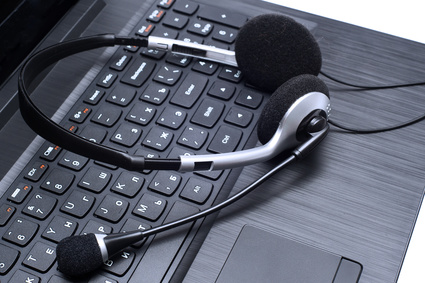
Dragon is a software that allows you to dictate your translation while it does the heavy lifting, i.e., typing. In my opinion, if you aren’t utilizing dictation software of some kind, you’re really missing out. I’ve heard from a few people recently that said they had tried it and not liked it, but the more I probed, the more I realized that they just didn’t know how to get the most out of it to actually see productivity results.
First, let’s talk about the benefits:
Lighten your load. First and foremost, it just makes translating easier. Plus, if you put forth less effort to translate the same number of words, in theory, you can translate a few more of them…or just take the afternoon off!
Goodbye hand cramps. I was developing a real case of carpal tunnel and it’s completely gone now because I’m not typing nearly as much. Translation can wreak havoc on our bodies and using dictation software can help protect your body. You can even stand up or walk around if you get a wireless headset.
Focus on the source. If you’re translating a PDF document, you’re usually forced to go back and forth looking at the source then the target, then the source and then target, etc. Dragon virtually eliminates this problem.
Hear your translation. We’ve long heard that reading a translation out loud can help eliminate things that just don’t sound right and with Dragon, this is not a separate step.
Translate faster. I think most people translate much faster with Dragon. It makes lists of phone numbers or lab values and especially dates a breeze. Even on complex medical documents, I am still faster than I was before using Dragon, even though I often do a lot of research.
Use commands to automate your repeated tasks. Even if you have used Dragon before, you may not be aware that Dragon Pro has the added feature of being able to create commands. Commands are similar to macros in Office if you’re familiar with them. If not, basically, any task that you do on a computer can be automated and linked to a voice command. For example, when you receive a job request and you’re all booked up, you could create a voice command, “all booked up” and have it insert an entire template e-mail for you. Or, if you come across text that repeats, you can create a command for it. I once had a patient record and it said something like “Patient 12345-6789, DOB 01/01/2001” which was covering the patient’s redacted name. I linked this text to the voice command “watermelon” knowing that “watermelon” was unlikely to be in this patient’s records and every time I said that word, it inserted that entire string of text for me. It’s also great if you come across brand names or molecule names that seem to have 478 characters…I mean, who has time to spell that every time? Not to mention, you can update your Facebook status, close and open windows and programs and lots more.
Translate consistently and translate better. I call this the “interpreter phenomenon” and I admit that it isn’t scientific—it’s just my experience. However, I find that sight translation and interpretation make me more decisive and make my brain work faster as I translate. Using Dragon is basically like practicing sight translation all of the time, which only makes you more decisive, thereby making you faster and faster.
Multitask. Dragon eliminates the absolute requirement that you must be looking where you are typing. For example, I might use Dragon to type in a search on Google or in a dictionary while I’m reading my source. Or, I might have looked something up and be reading the information I need as I’m dictating my newly found terminology into my translation.
I know you’re sold on dictation software now, but hold off on pressing “buy” before you read the pitfalls:
Tomato: tomayto or tomahto? You need to know how to pronounce words. Think it’s obvious? Well, you might think you know how to pronounce it, but Dragon might not agree with you. Don’t worry, either you or Dragon will learn. You can even train Dragon with new vocabulary it doesn’t know.
Proofread differently. You have to proofread for mistakes that you know you never would have made. I recently had Dragon decide that when I said “NM” I meant “New Mexico.” I didn’t. It was an acronym for an institution. It also wrote March 42 7 when I meant March 4 to 7. You get used to looking for these things the more you use Dragon so don’t let this scare you off.
Heavy program. If you’re using a computer that is on its last leg, it probably won’t be able to handle Dragon, but most decent computers don’t seem to have problems.
No distractions. Yes, that is a pitfall…and an advantage. No listening to music or other sound. I do, however, sometimes manage to listen to music through the headset and it doesn’t seem to affect Dragon.
So, how much can Dragon increase your productivity? Well, that depends. I can say that just by adding Dragon to my own workflow, I’ve increased my speed by about 25% on highly technical jobs and by up to 100% on less technical jobs, including careful proofreading. There’s certainly no doubt that the software is now on my list of absolutely essential tools in my workflow, but don’t forget to proofread carefully.
Note: I am in no way affiliated with Dragon and there are several other dictation software programs available, it just so happens that my experience has been with Dragon.